Overview
Connecting your Slack to OCSEE enables you to sync messages to Channels, share OCSEE content with rich previews, get updates about changes in your projects, receive comments in real-time, and send replies — all via Slack. With this, Enterprise customers can also purchase Ask OCSEE as an add-on to bring the voice of their customers to where decisions are made. It allows anyone in an organization to ask OCSEE questions in Slack, access your aggregated customer feedback and schedule audio or text digests.Set up Slack integration
If you are setting up the Slack integration for the first time, there are a few things to be aware of including:
- It’s common that Slack workspace owners may have turned on app approval to require admin approval for installing new apps, including OCSEE. If this is the case for your Slack workspace, we recommend seeking approval from your internal IT team and sharing this article to provide an outline of the integration’s capability and requested permissions.
- If using Ask OCSEE in Slack, only users with a OCSEE admin role can enable the integration in OCSEE. Non-admin users will not be able to view or configure the integration.
- To do this, open ⚙️ Settings → Integrations and navigate to Slack.
- From there, select Connect and continue to log in to your Slack account and review the requested permissions.
Reply to and like comments in Slack
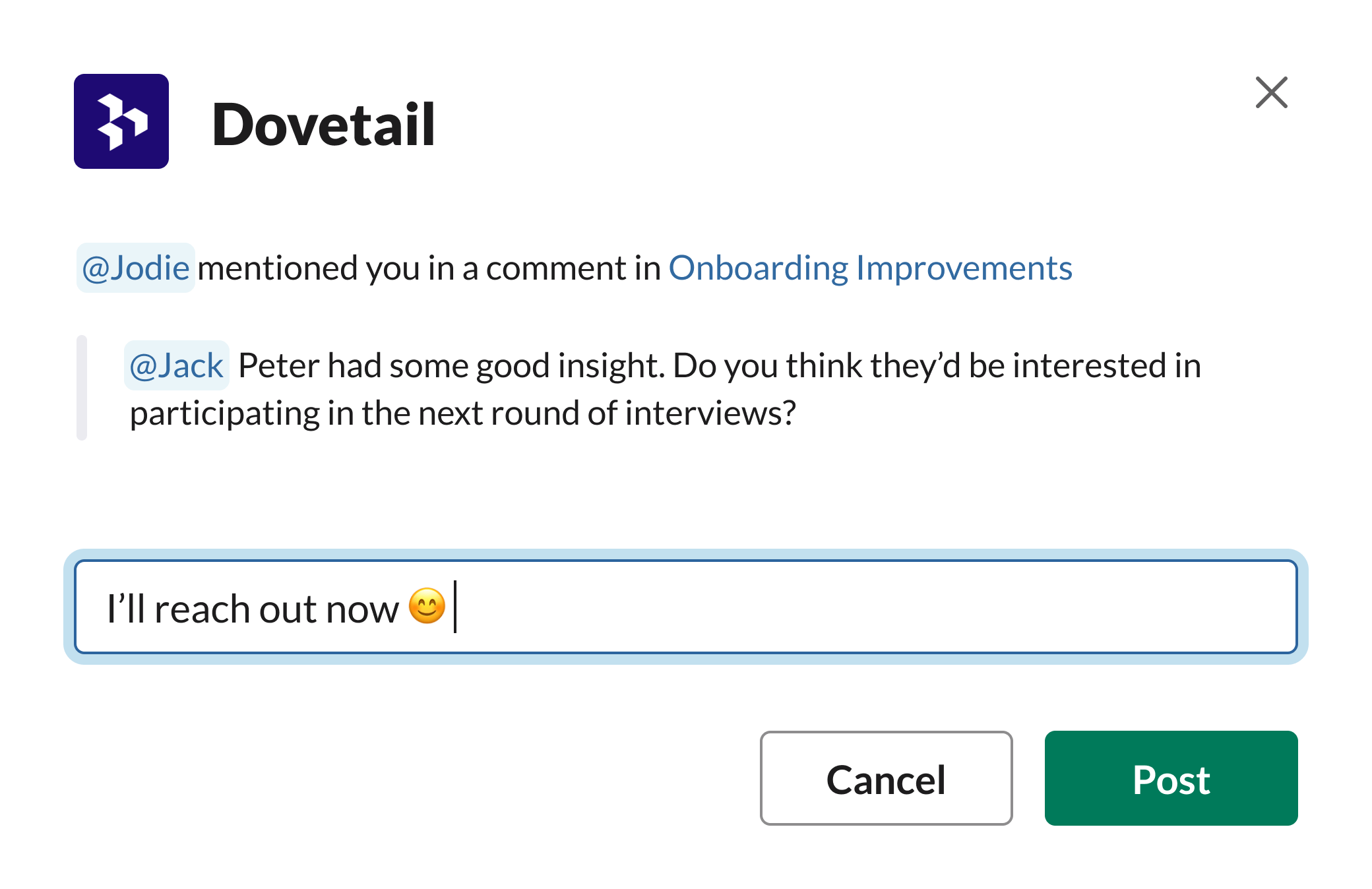
If someone mentions you in a comment, you can reply and like that comment directly in Slack.- To like (or dislike) a comment, just click on the Like button.
- To reply to a comment, click on Reply and enter your comment in the pop-up window, which will be sent directly to OCSEE once you click Post.
Share OCSEE data in Slack
When you share a link to a single video highlight or reel in Slack, the video will be available for your team to play right from Slack. If you are using the desktop or mobile app to play the highlight, you’ll need to authenticate first.- To do this, copy the link provided in the player and paste it into your browser to log in to OCSEE
- Next, copy the one-time password (OTP) and enter this into the box in Slack.
- From there, the data from OCSEE will show in your relevant Slack channel.
Sync Slack messages to Channels
Bring the voice of the customer directly into OCSEE by connecting your internal Slack channels to Channels. With a one-time setup, OCSEE will continuously sync messages from public Slack channels and use AI to automatically classify and organize feedback into themes, no more copy-pasting required. To do this:- Connect Slack: A workspace admin connects Slack from the Integrations tab in OCSEE. During setup, you’ll complete authentication and choose which Slack channels should be available for use. Note: You can only connect one Slack workspace to one OCSEE workspace.
- Connect a data source: In your Channel, click Connect data source, then select Slack from the list of available integrations.
- Configure what to analyze: Choose the Slack channel you want to analyze, and select a time period—7 days, 30 days, 90 days, or 6 months. OCSEE will pull messages from that channel based on your selection.
- Review and analyze in OCSEE: Your Slack messages will be imported as data points. OCSEE will automatically analyze the content and identify recurring themes. You can open any individual data point to view a summary of the Slack message and see the full conversation thread for added context.
What’s included in each message
- The message text and up to 20 replies
- Number of reactions
- Number of replies and unique reply users
- User ID and username
- Timestamps and thread context
Set up Ask OCSEE for Slack
This feature is only available as an add-on to our Enterprise bundle. Enterprise workspaces come with additional features and support to meet your organization’s needs.Check out our pricing page for more information on Enterprise.
- To do this, navigate Settings → Integrations → Slack and toggle on Ask OCSEE. Depending on your organization’s configuration, Slack may ask you to provide a reason for the integration and submit a request to your Slack administrator.
- Once the integration is enabled, select which projects and data you want to appear cited in search results or digests within Slack. All public projects are available by default, but admins can select which projects to exclude. Private projects are not accessible to Ask OCSEE. You can also prevent certain object types from contributing to search results, or being cited as sources in answers.
- Once your Slack workspace is connected with your OCSEE workspace, anyone in your Slack workspace will be able to ask questions and create digests.
Ask questions to OCSEE in Slack
There are two main ways to ask questions to OCSEE in a Slack channel – Public or Only visible to you. To ask a question that will be public and visible to others, type @ocsee followed by your search question.- For example –
@ocsee what are our users’ top pain points?
/ocsee followed by your search question.
- For example –
/ocsee what are our users’ top pain points?
Create a scheduled digest
Stay up to date with ongoing project work by scheduling recurring audio or written digests that you can receive in Slack. They’re a way to effortlessly stay up to date with new information coming into your workspace.- To create a digest, use the slash command
/ocsee digestwhich will open a popup for you to configure. - Here, you can choose a title, decide which projects you’d like to receive updates from, what Slack channel you’d like to send this digest to, set the format (audio or text) and frequency (weekly, fortnightly, monthly).
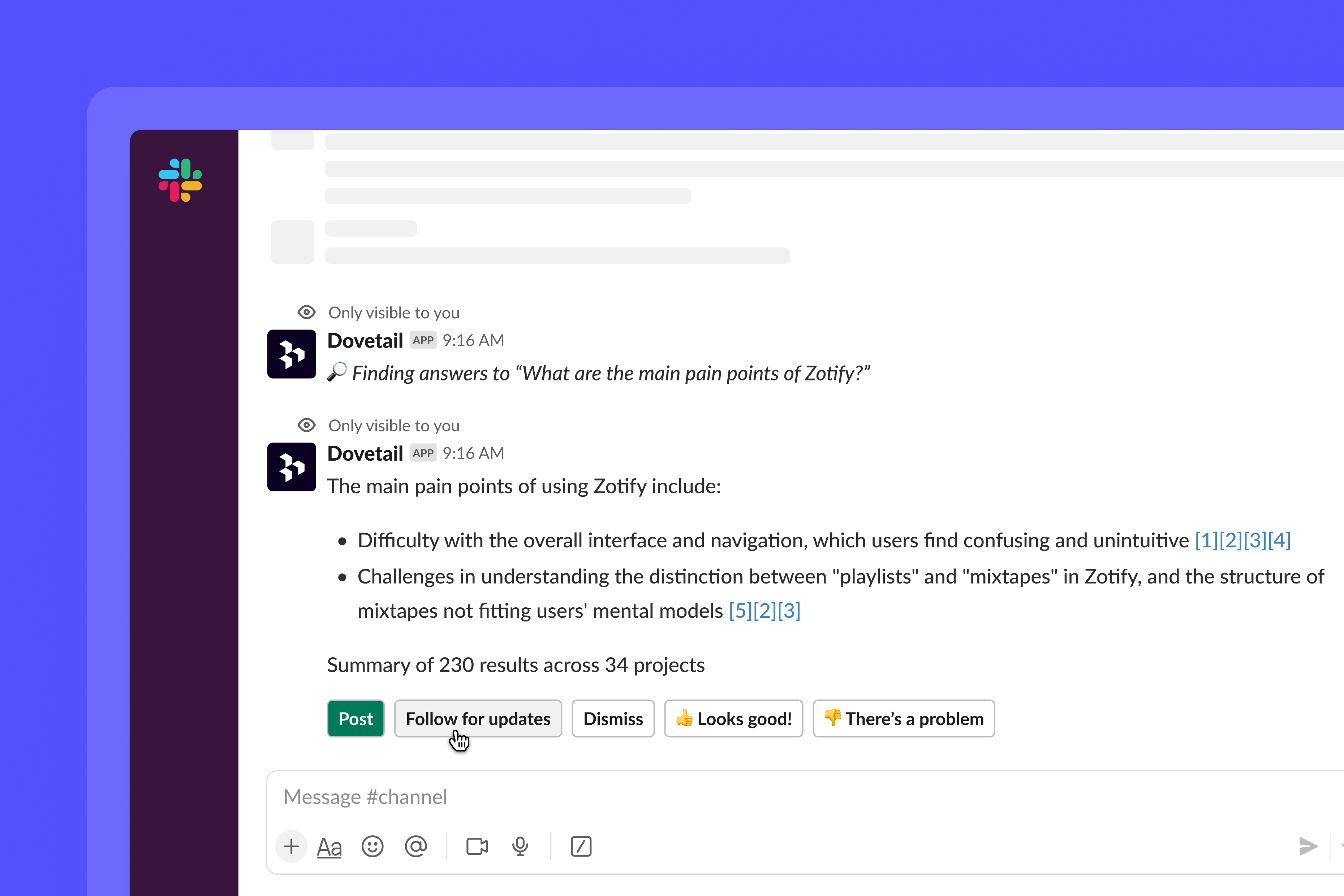
- Once you receive a response to your question, select “Follow search”.
- From there, you can configure the digest as described above.
All users can create Digests, regardless of role.
Use Ask OCSEE as a Slack AI assistant
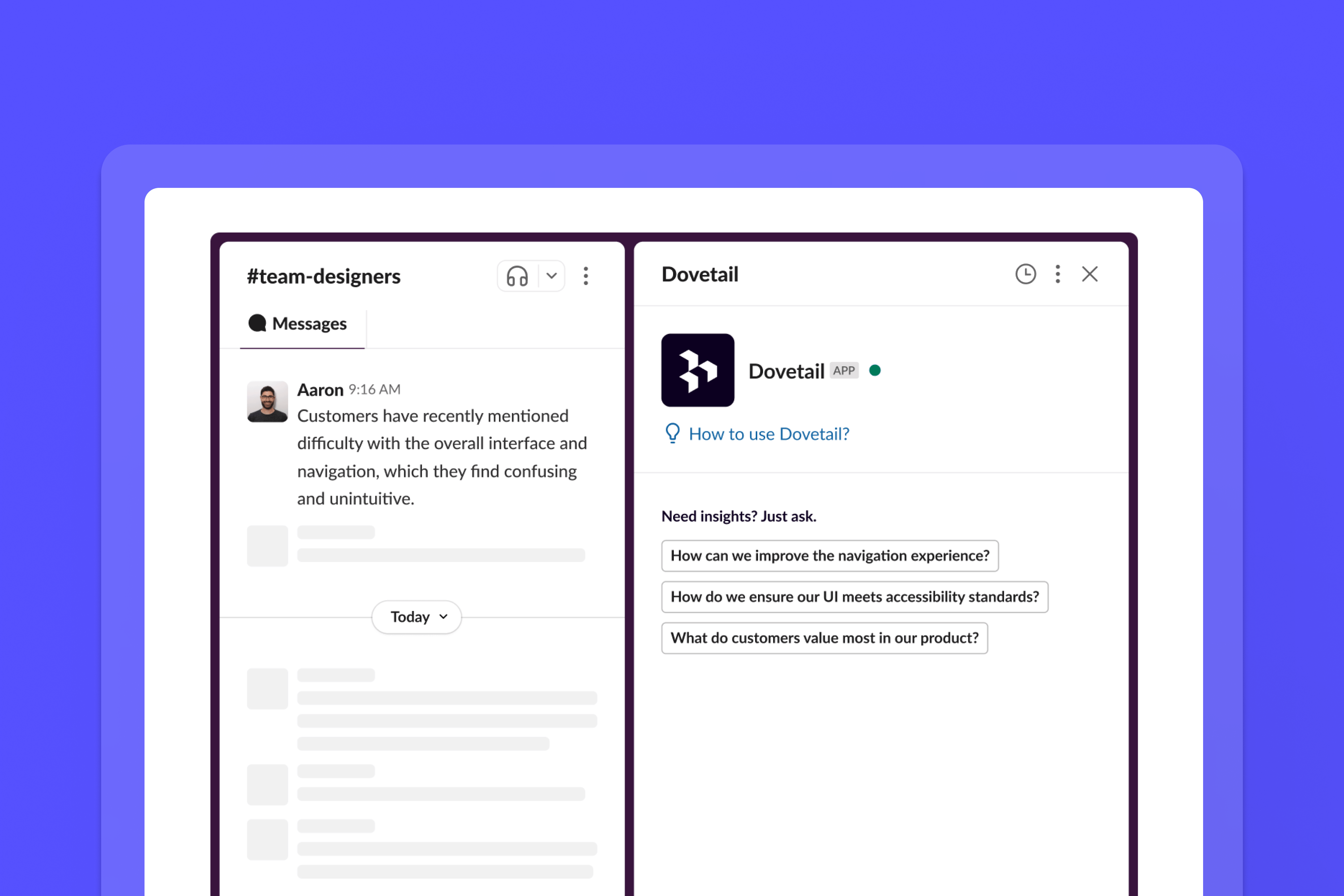
Ask OCSEE is also available as a Slack AI assistant. With this, you can open a private thread in any channel to query OCSEE and answers provided will combine the data in your OCSEE workspace with any relevant knowledge in your Slack instance. Ask OCSEE users have instant access to the AI assistant and can perform any Ask OCSEE actions. If not, check that you have OCSEE enabled by navigating to Preferences → Navigation in your Slack workspace.- To use Ask with the AI assistant, open a thread in a relevant channel and select the OCSEE icon from your AI Assistant menu in Slack (note that this will only work in channels that have the OCSEE integration added).
- From there, you can perform a query, ask follow up questions, and create digests in the same way as described above.
Manage your Slack connection
Notifications
You can stop receiving notifications in Slack. To do this, go to ⚙️ Settings → Notifications. From there, you can then turn the Slack notificationson or off.
Disconnect
You can disconnect your Slack account from OCSEE at any time. To do this, go to ⚙️ Settings → Integrations, locate Slack in the integrations list, and select Disconnect.Restrict Slack connections to authorized subdomains
Admins can allowlist specific Slack subdomains users can connect their OCSEE account to. By restricting the Slack integration to authorized subdomains, admins can ensure that only approved workspaces can be linked. This helps mitigate the risk of sensitive information being unintentionally shared with external or unauthorized environments.- To do this, open ⚙️ Settings → Integrations → Slack.
- From there, click the actions menu
···, select Security settings, then enter authorized subdomains users can use to connect their Slack integration to.
Requested permissions
When you connect your Slack account to OCSEE, you will grant OCSEE access to:- View content and info about channels and conversations: View messages and other content in direct messages that OCSEE has been added to.
- View content and info about your workspace: View people in your workspace and view the name, email domain, and icon for workspaces OCSEE is connected.
- Perform actions in channels and conversations: Send messages as @ocsee, embed video player URLs and show link previews from ocseeapp.com and ocsee.com, join public channels in your workspace, view messages that directly mention
@ocseein conversations that the app is in. - Perform actions in your workspace: Add the slash command
/ocseethat people can use.
FAQs
Important information about the OCSEE Slack app and AI features
Important information about the OCSEE Slack app and AI features
We will never perform unexpected actions, such as joining all public channels by default or taking actions, unless prompted by the user.Ask OCSEE (available as an add-on to the base OCSEE Slack app) uses AI and large language models (LLM). Please note that responses generated may occasionally be inaccurate. We encourage you to verify any AI-generated content before relying on it. The AI model we use is Claude 3 Sonnet.
Data Retention
We only keep your data on our servers while your request is being processed, which will be done in the region of your OCSEE workspace. Your Slack data is used solely for conversational search and is processed within the LLM environment.What We Don’t Do
We don’t use your Slack data (messages, files, etc.) to train or improve any AI models.We are committed to ensuring a secure and transparent experience for all users. If you have any questions or concerns, feel free to reach out at [email protected].Can I use Ask OCSEE in multiple Slack workspaces?
Can I use Ask OCSEE in multiple Slack workspaces?
Not currently. Ask OCSEE supports a one-to-one connection between a OCSEE workspace and a Slack workspace.