Create a new channel
- From your workspace, select New channel.
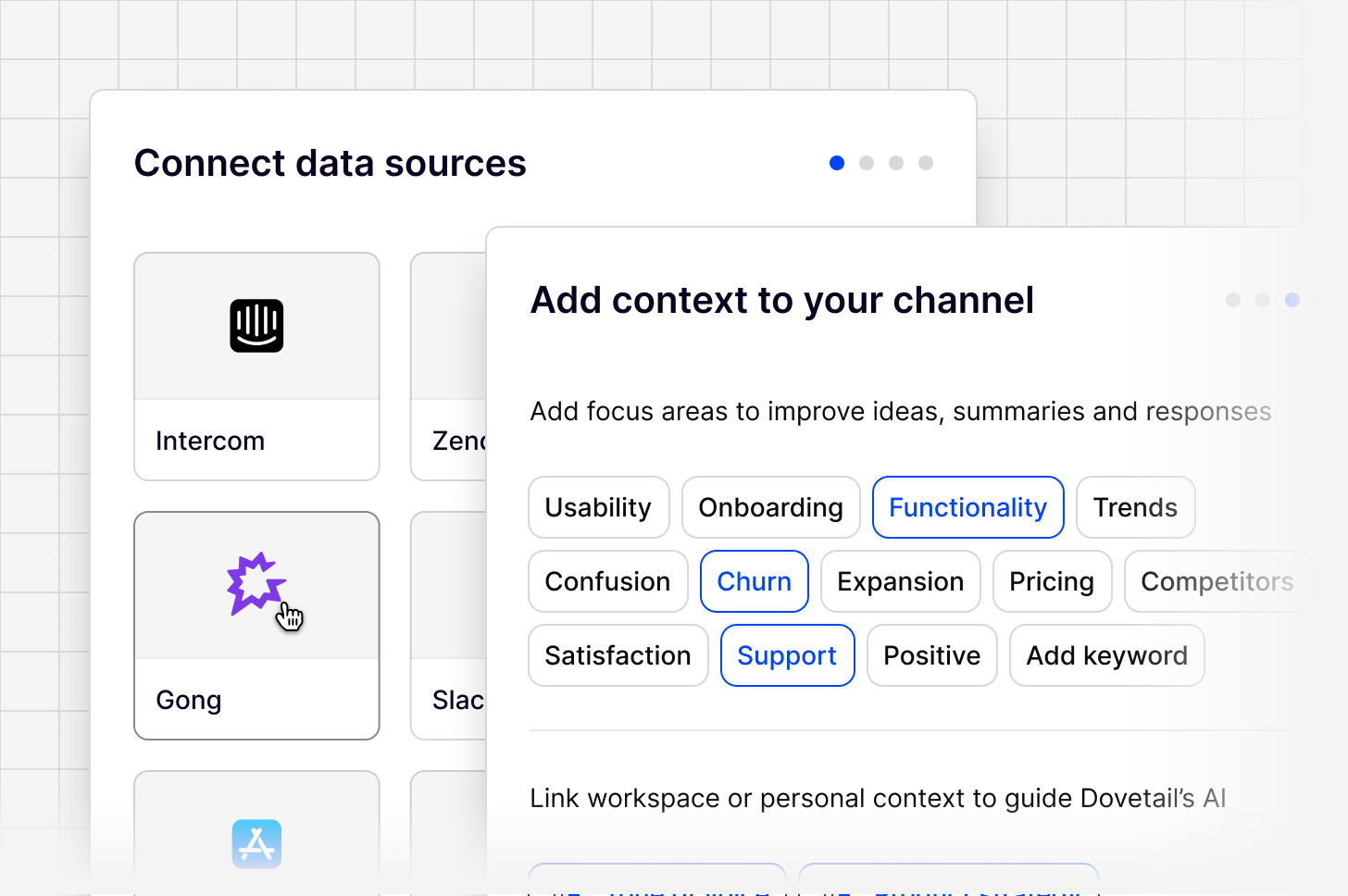
- Connect a data source.
- Map your data by configuring your source.
- Input context and select focus area keywords, or add your own, to shape how the AI classifies and surfaces feedback from the start. Link any relevant workspace docs, such as a strategy or tone of voice doc, to sharpen this further.
- Choose whether to automatically redact PII.
- Choose whether to Create contacts and sync metadata directly from this source’s feedback. See more on this at Contact syncing.
- Connect at least one data source to get your first analysis running.
- Give your channel a name that reflects its focus area, for example “Mobile app retention” or “Enterprise onboarding.”
Connect your data source(s)
When you create a channel, every data source already connected to your workspace is available immediately. You can also connect a new source directly from the channel. Supported sources include:- App store
- API
- Canny
- CSV (see the CSV import FAQs below)
- Discord
- Freshdesk
- Front
- G2
- Gong
- Google Play reviews
- Grain
- HubSpot Service Hub (conversations and tickets)
- Intercom
- Jira Service Management
- Pendo
- PostHog
- Qualtrics
- Salesforce Service Cloud
- ServiceNow CSM
- Slack
- Snowflake
- Sprig
- Usersnap
- Zapier
- Zendesk
- Zoho Desk
Manage data sources
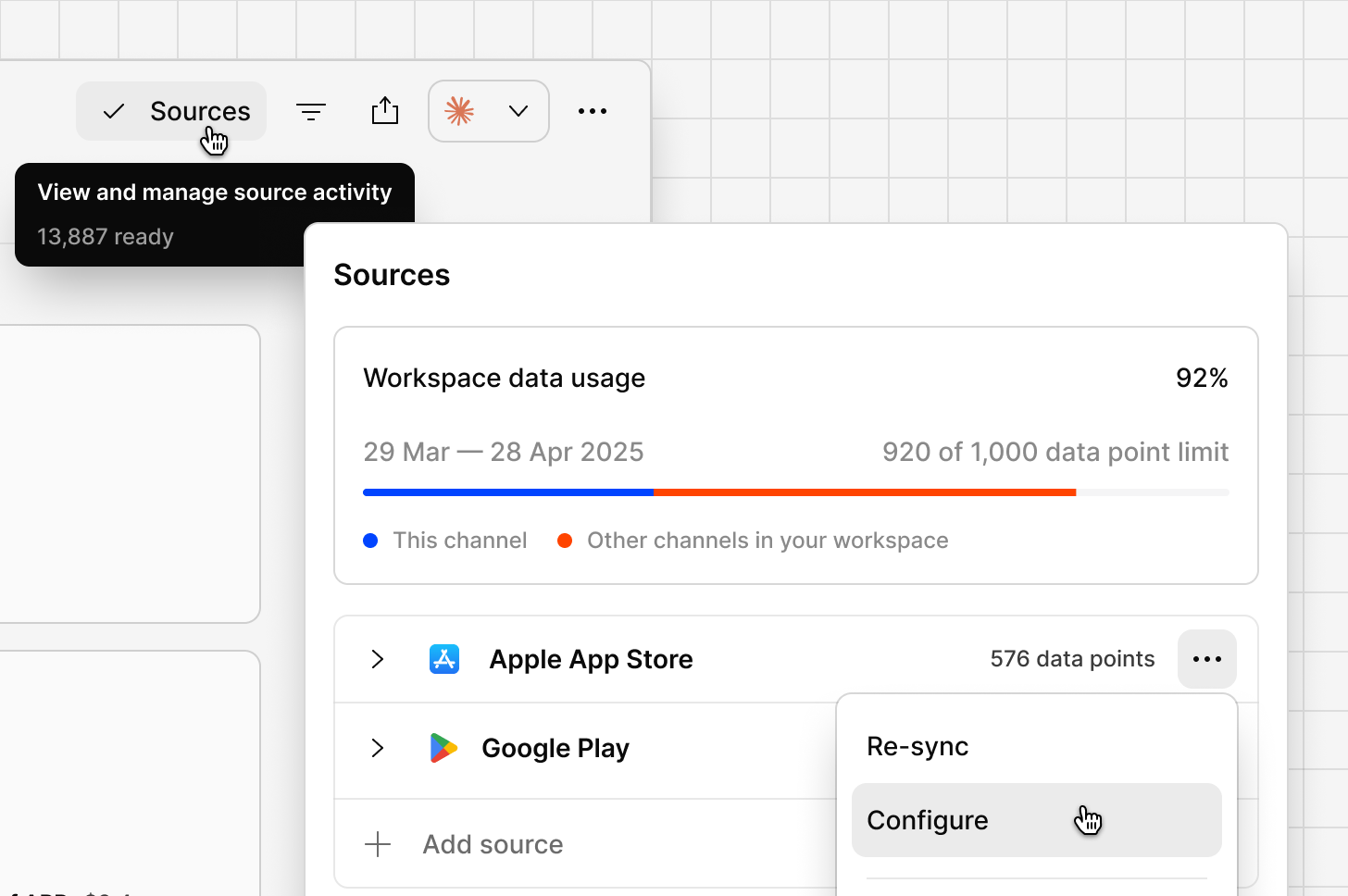
After adding a source to the channel, you can then configure what metadata fields you wish to display and filter. This can be edited at any time by:- Click on the Sources in the Channel heading
- Find and hover over the source that you wish to change
- Select the … more menu
- Select Configure
- Make any necessary changes, and select Save
You can add as many sources as you like to the channel.
CSV import FAQs
What are the CSV import limits for a channel?
What are the CSV import limits for a channel?
Channels do not use the project 5,000-row CSV limit. How many rows you can import depends on the data points remaining in your workspace for the current billing period.You can check remaining usage from the channel’s sources or usage view. Workspace admins can review or change data point allowances in Settings → Billing.
What does my CSV need to include?
What does my CSV need to include?
The file must:
- Be a
.csvwith a header row and at least one data row - Include a column with valid dates
- Include text for Channels to analyze (for example, feedback, comments, or ticket content)
What happens if my CSV is larger than my remaining data points?
What happens if my CSV is larger than my remaining data points?
You’ll see a File exceeds data limit message, and the file will not be imported. Reduce the number of rows, wait until the next usage period, or increase your data point allowance.Once you reach the monthly data point limit, no new data points appear in the channel. Existing data stays available. There are no overage charges.
Is there a file size limit for channel CSVs?
Is there a file size limit for channel CSVs?
There is no separate MB cap like the 10 MB project CSV limit. Import is limited by remaining data points. Very large files can still fail to open in the browser — if that happens, split the file and import it in parts.
When does my data point usage reset?
When does my data point usage reset?
Usage resets each month on the workspace’s original billing date, on both monthly and annual subscriptions.
Can I increase how many data points I can import?
Can I increase how many data points I can import?
Yes. Workspace admins can change data points in Settings → Billing. If that option is unavailable, contact Sales.
Can I analyze multiple columns for CSV?
Can I analyze multiple columns for CSV?
Yes, you can select multiple columns to analyze when you add a CSV source to a channel