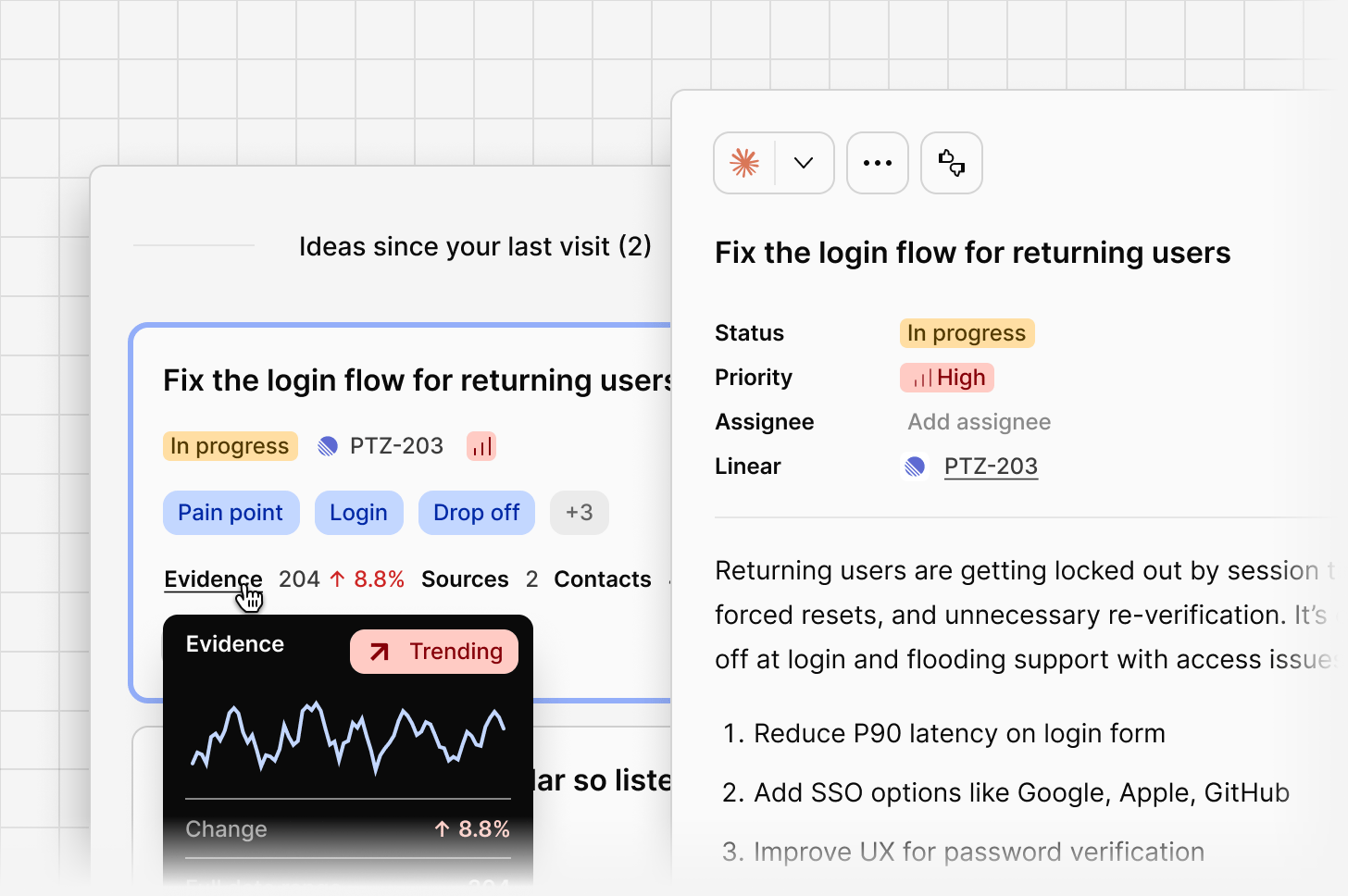
Status, priority, assignee
Each idea moves through a lifecycle: Surfaced → Assigned → In progress → Resolved. Set a priority manually, and assign an idea to a teammate so ownership is clear.Roll-up breakdown
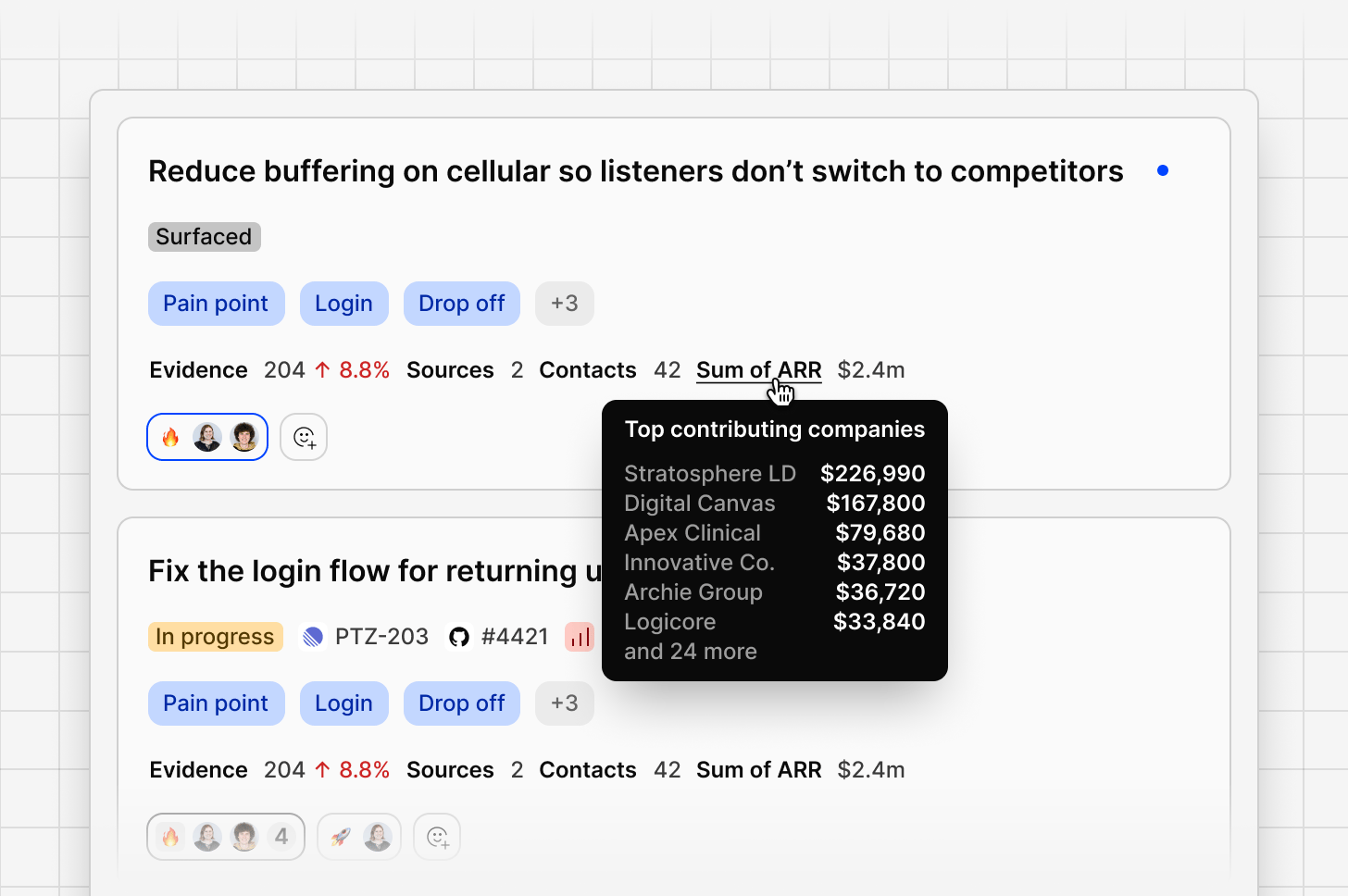
Every idea shows a roll-up of the evidence behind it: number of data points, sources, contacts, and total ARR represented. This rollup is managed through your contact identifiers, which can be accessed in OCSEE by going toSettings → Contact Settings → Contact Identifiers → Configure.
Idea summary and recommendations
Each idea comes with a summary explaining what’s driving it and why it matters, written in plain language from the evidence behind it. Below the summary, Channels suggests a short list of concrete recommendations, specific changes or approaches worth considering to address the idea. Both the summary and recommendations update automatically as new evidence comes in, or as you change the date range or filters applied to the channel, so what you’re reading always reflects the current state of the underlying data.Over-time trending visualization
Each idea includes a trend over time graph, showing how signal volume has changed. A rising sparkline means the issue is becoming more prominent; a flat or declining one suggests it’s stabilizing. Ideas with no recent activity are marked Dormant. Open the full over-time chart on an idea to see demand across your selected date range, useful for spotting whether something is seasonal, tied to a release, or steadily growing.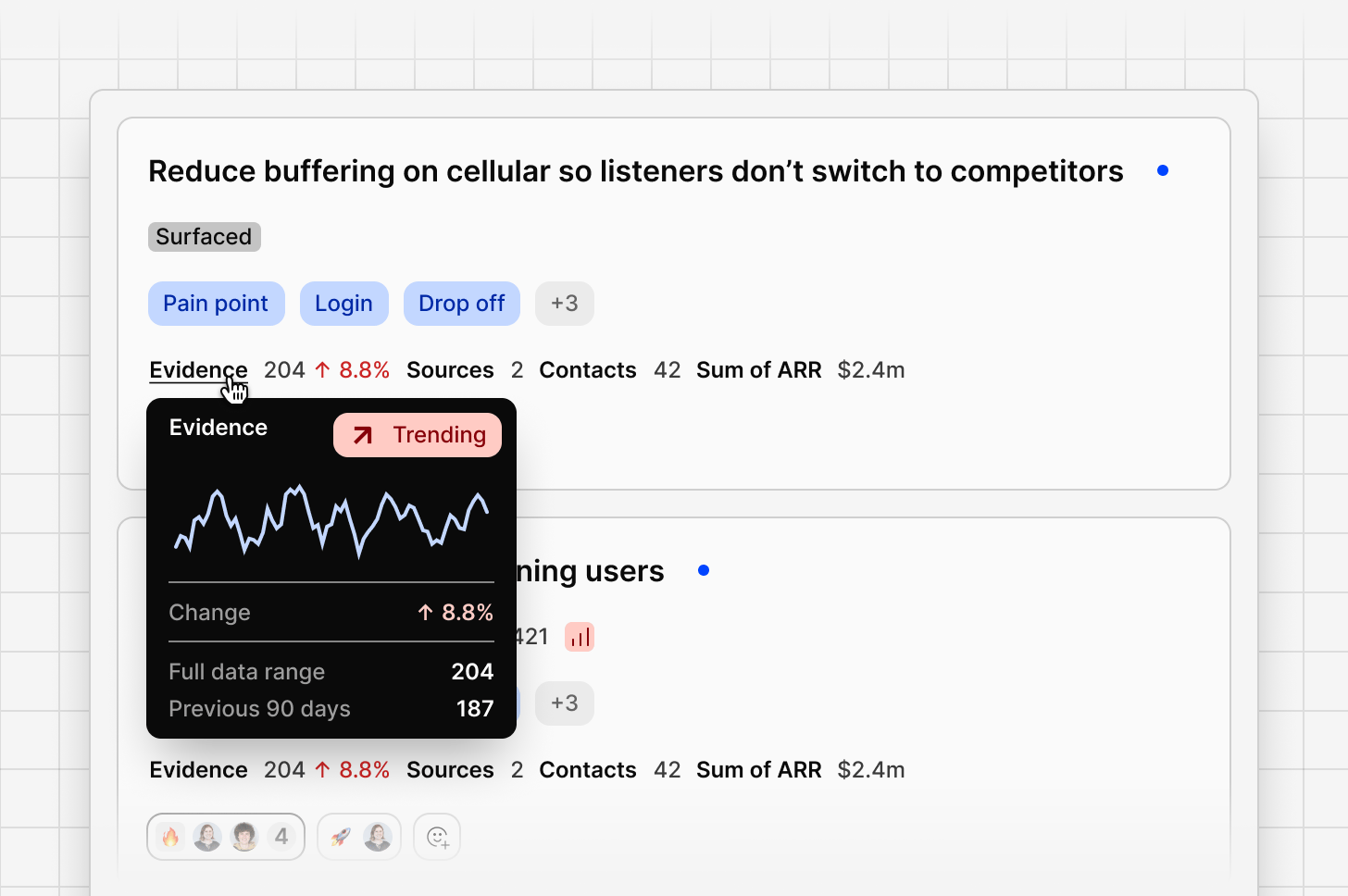
Comments
Use @mentions to bring in a teammate, or to reference other objects in your workspace, such as a Project, a Doc, or another Channel, so people can jump straight to the relevant context without leaving the conversation.Rename, merge, and archive
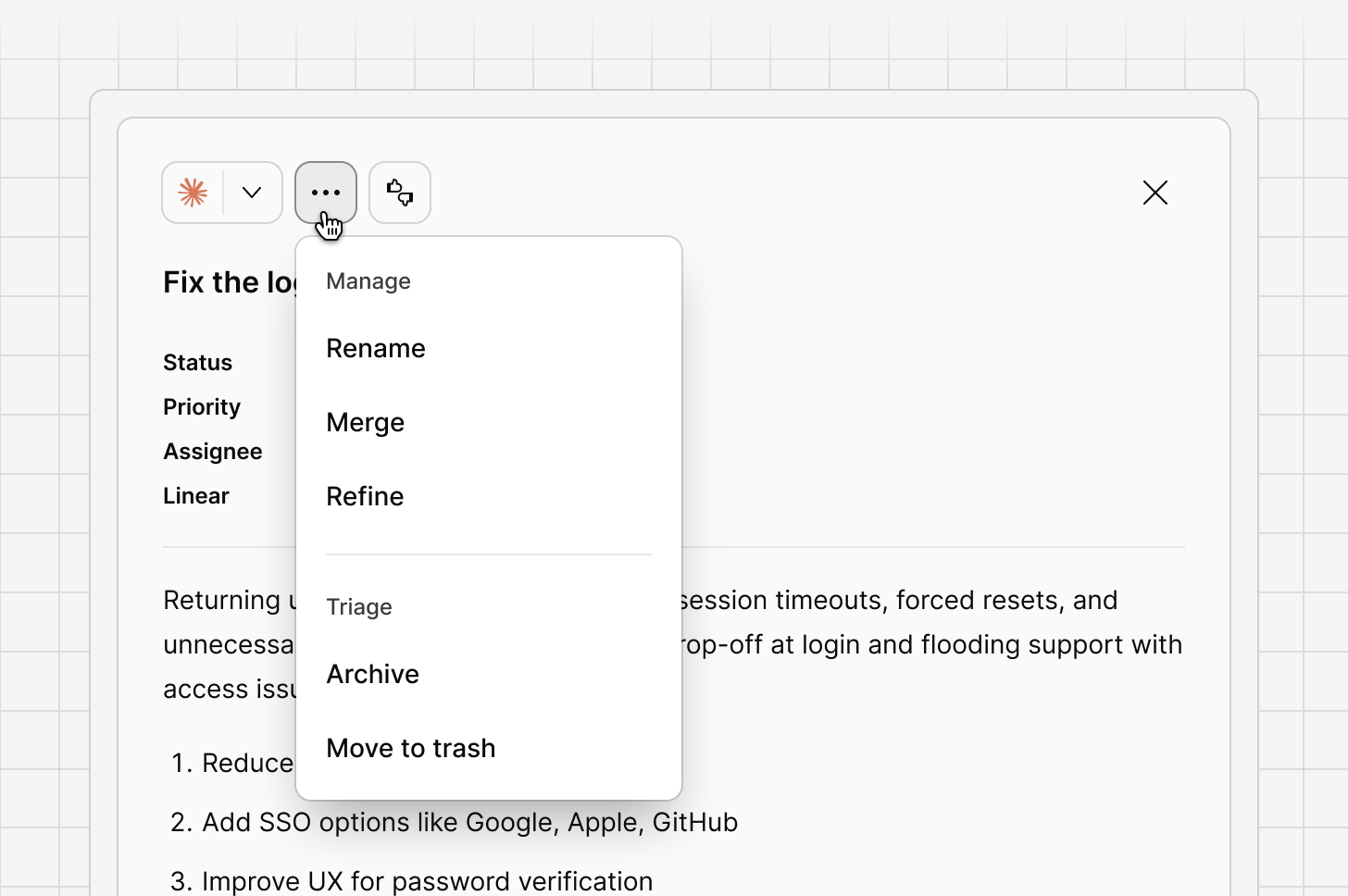
You’re always in control of how ideas are organized:Renamean idea’s headline in your own words.Mergeoverlapping ideas into a single, clearer one.Archivean idea that’s no longer relevant.
Entities and tags
Entity tags on each idea card show the topics, features, and product areas extracted automatically from the underlying evidence. Filter the whole feed by an entity to see only ideas related to that topic.Closing the loop
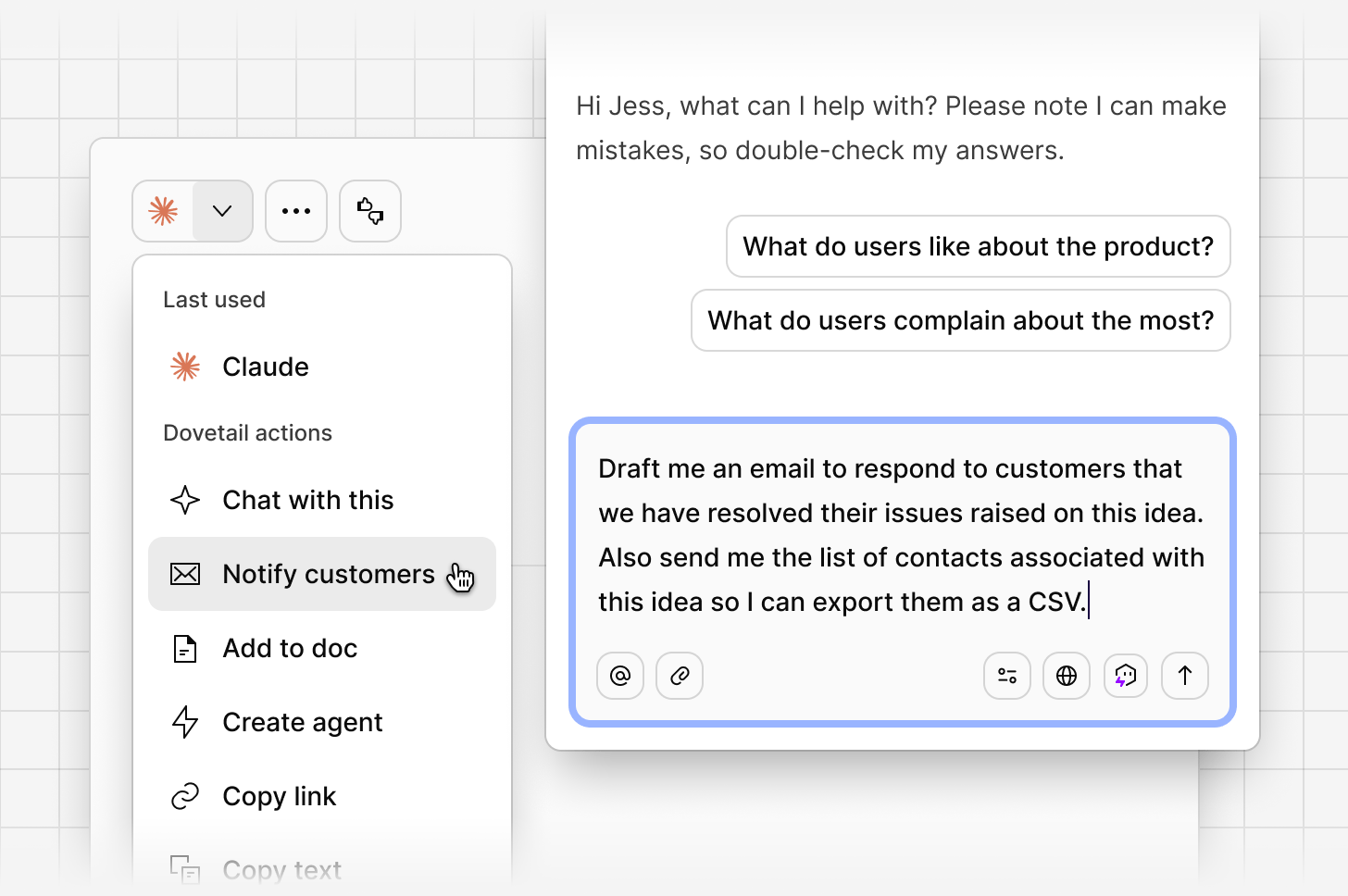
When you move an idea to Resolved, use theNotify customers action to draft and send a personalized update to the contacts whose feedback contributed to it. OCSEE generates the complete CSV list of contacts that have associated with that idea. You can use chat to review the message, make any edits, and send it from your own email client.
Sort, filter and save views
Sort and filter
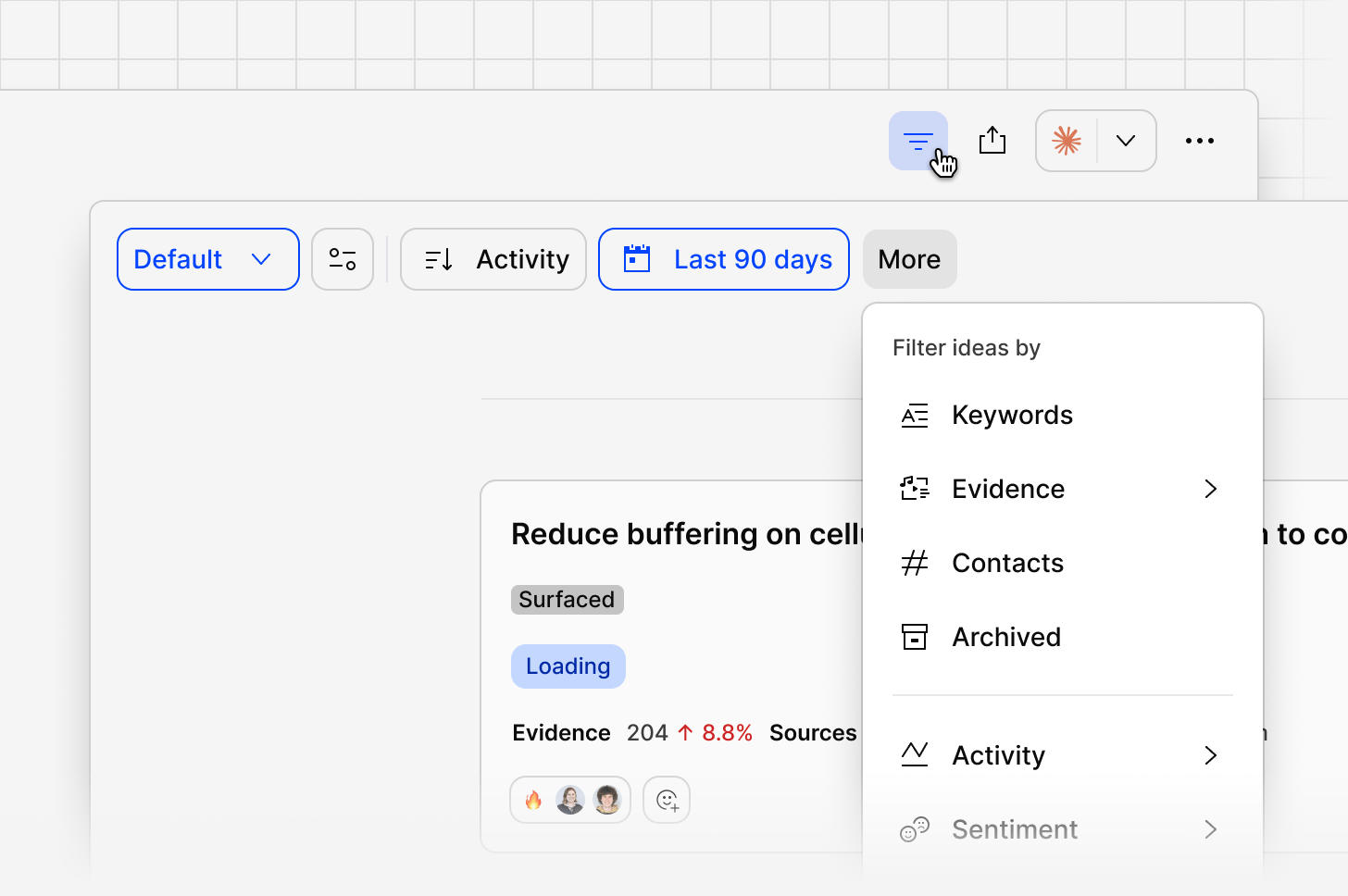
UseSort by to order the feed by activity, priority, severity, sentiment, data points, and more, including custom rollups like plan or industry.
Use More to filter by fields such as entity, intent, ARR, contacts, owner, and archived status. Filters stack, so you can combine, for example, Entity and Intent to narrow to a precise slice of feedback.
Saving views
Save a specific combination of filters and sort order as a view, so your team can return to the same slice of feedback without rebuilding it each time. This is a shared way for different squads or product areas to work from the same feed. For example, segmenting and saving views based on product area, industry, region, revenue, etc.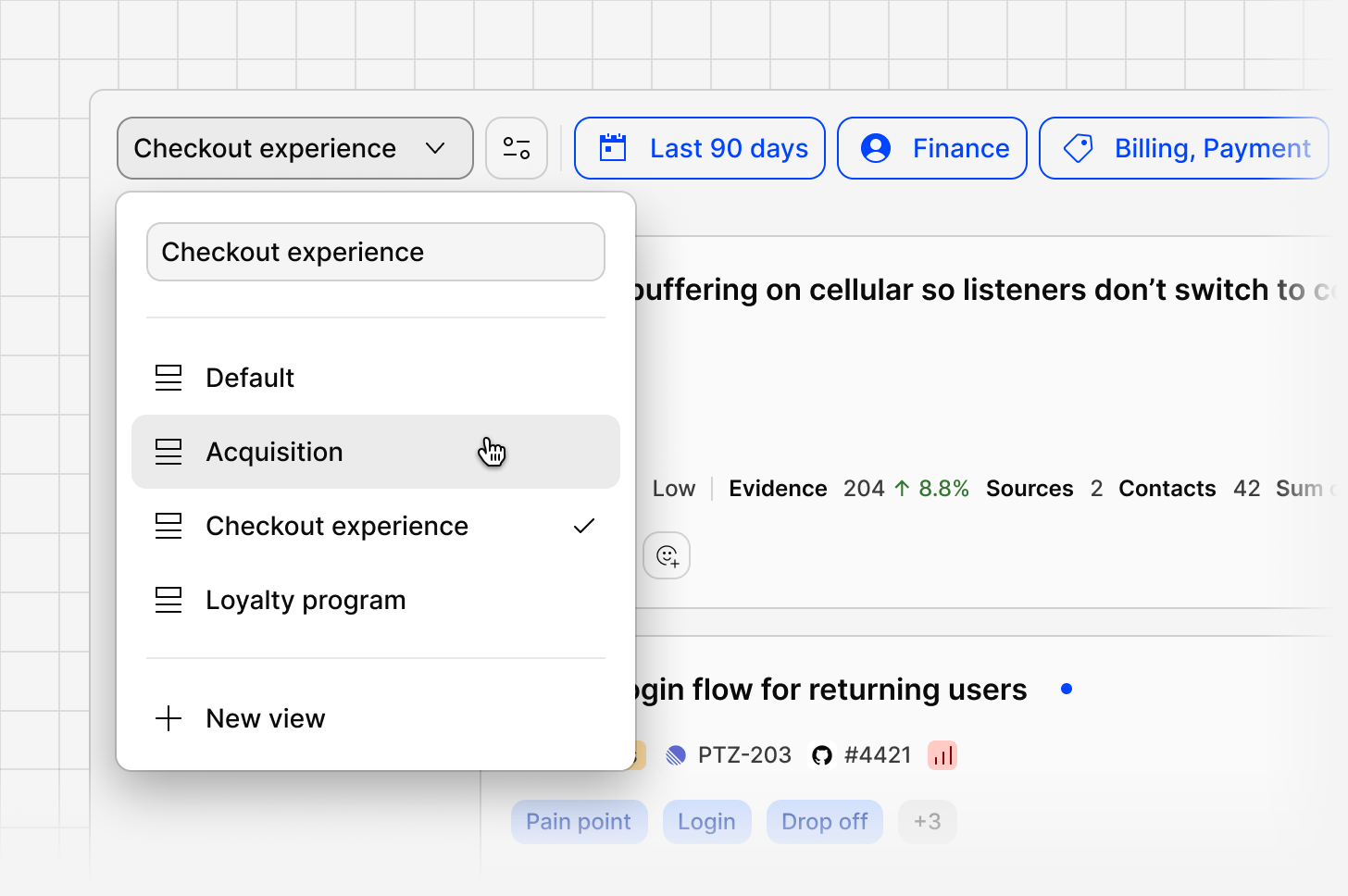
Related guides
Voice of customer
Centralize feedback, make sense of it, and close the loop.
Revenue intelligence
Rank what matters by revenue and enrich contacts from a CRM.