Available as an add-on to our Enterprise plan. Enterprise workspaces come
with additional features and support to meet your organization’s needs. Check
out our pricing page for more information on Enterprise.
Overview
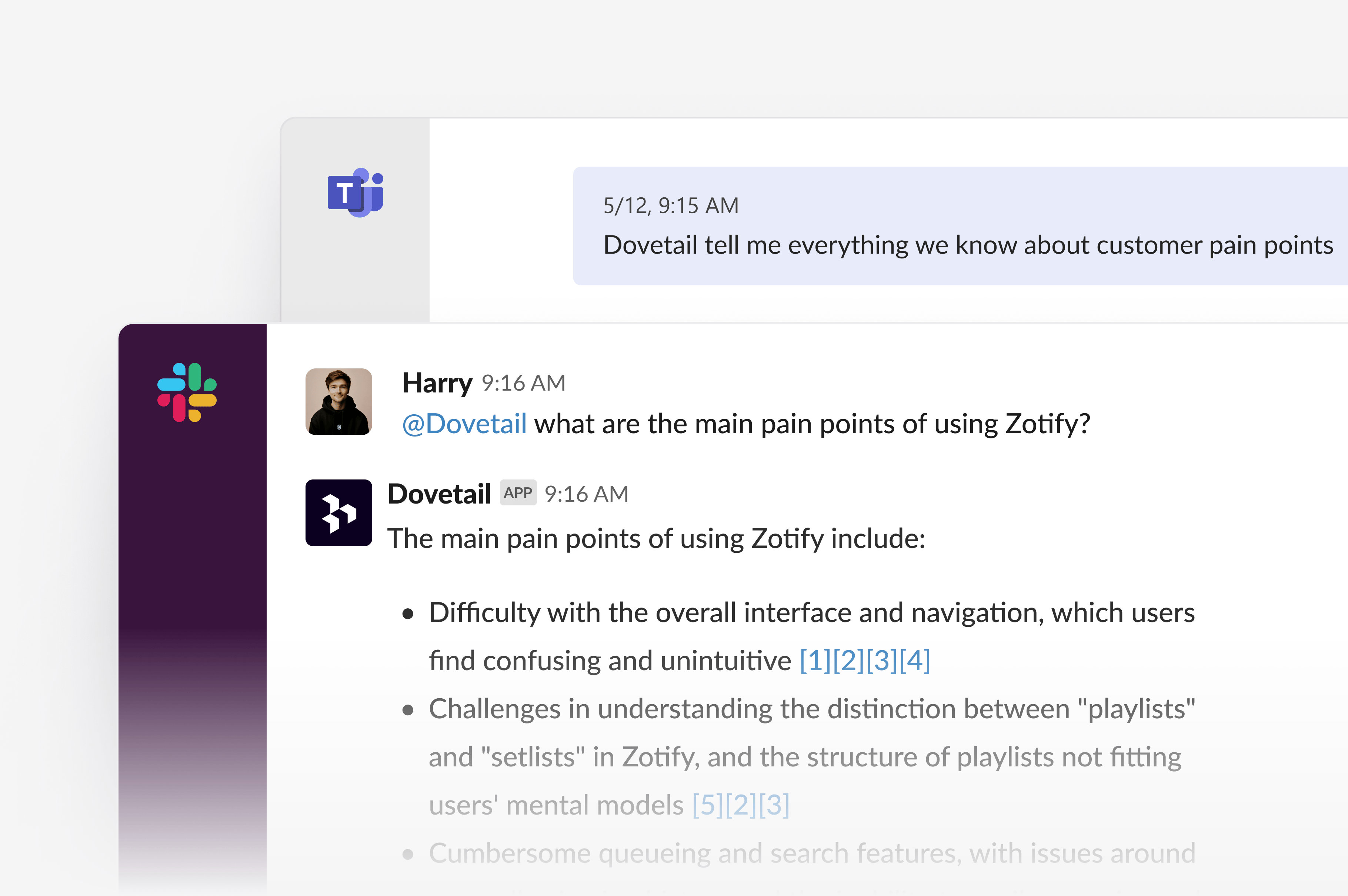
Ask OCSEE is an add-on integration that brings the voice of the customer directly to your Slack or Teams workspace. Once connected to your workspace, Ask allows anyone in your organization to:- Use conversational AI to ask questions in Slack and Teams. For example, a user could ask, “What do new users struggle with during onboarding?”, and receive a summary based on customer feedback, with citations to the source data.
- Configure text or audio podcast digests, where key information is proactively delivered in an easy-to-consume format. These digests include summaries, key points, and (if delivered in audio format) clips of customer quotes.
Set up chat in Slack or Teams
Ask OCSEE can be enabled by a OCSEE workspace admin after connecting the Slack or Teams integration in your workspace. If you are setting up the integration for the first time, there are a few things to be aware of:- It’s common that you may require admin approval from Slack or Teams workspace owners when installing new apps like OCSEE. If this is the case for your workspace, we recommend seeking approval from your internal IT team and sharing this article to provide an outline of the integration’s capability and requested permissions.
- Only users with a OCSEE admin role can enable the integration in OCSEE. Non-admin users will not be able to view or configure the integration.
- In OCSEE, go to ⚙️ Settings → Integrations and find the Ask OCSEE card.
- Toggle Ask OCSEE on. If you haven’t trialed it before, you’ll see an Enable now for free button — click it to request a 30-day trial and you’ll see the message “Thanks! We’ll be in touch soon”.
- Once your request is approved, return to the same card and click Connect to Slack or Connect to Teams to authorize the app.
- After connecting, use the same card to choose which citable data types (Highlights, Docs, Notes, Channels) and which projects Ask OCSEE can draw from when answering questions.
I requested Ask OCSEE and saw "Thanks! We'll be in touch soon." What happens next?
I requested Ask OCSEE and saw "Thanks! We'll be in touch soon." What happens next?
Your request has been received, but Ask OCSEE isn’t active yet. Once we approve it, return to the same card in ⚙️ Settings → Integrations to connect Slack or Teams. If we don’t approve it within 3 days, the button resets to Enable now for free and you can request again.Note that requesting a trial is only available on Enterprise plans that haven’t trialed Ask OCSEE before — if you see a Contact sales option instead, get in touch with our Sales team to add it to your plan. Alternatively, reach out to your CSM for a trial or to purchase.
Query OCSEE in Slack or Teams
With Ask, anyone can ask a question to OCSEE in the tools they work in everyday. Where relevant, OCSEE will also provide citations in the response, allowing users to trace evidence back to data within OCSEE. To get started with a query:- Slack – Type
@ocseefollowed by your search or question. - Teams – Type
@ocseefollowed by your search or question.
Create a scheduled digest
Ask OCSEE is an Enterprise add-on. A OCSEE workspace admin turns it on after Slack or Microsoft Teams is connected. Until that’s done, digests won’t run.-
Connect Slack or Teams
In OCSEE, go to Settings → Integrations, then open Slack or Microsoft Teams. Select Connect, sign in, and approve the requested permissions.
A few things to know:
- Your Slack or Teams admins may need to approve the OCSEE app first.
- Ask OCSEE is a one-to-one connection: one OCSEE workspace to one Slack (or Teams) workspace.
- Personal Microsoft accounts aren’t supported for Teams.
- Turn on Ask OCSEE Still in Settings → Integrations, open Slack or Teams and toggle Ask OCSEE on. Only a workspace admin can do this. If you aren’t an admin, you’ll see a prompt to ask one to enable it. If Slack or Teams requires app approval, you may need to submit a request to your IT team.
-
Choose what Ask OCSEE can use
After it’s on, the admin chooses:
- Which projects can be cited in answers and digests. Public projects are included by default; private projects are never included.
- Which data types can be cited (for example highlights, docs, notes, and channel themes).
-
Create a digest
- Slack – Use the slash command
/ocsee digestto open a popup and configure your digest. The OCSEE Slack app also supports/ocsee helpand/ocsee settings. - Teams – Type
create-digestin a direct message with the OCSEE app.list-digestsshows any digests you’ve already set up.
- Slack – Use the slash command