Overview
Connect your Notion account so you can share OCSEE content in Notion with rich previews in pages that summarize research findings, track product feedback, or validate a design decision.Set up Notion integration
- To connect your Notion account, select ⚙️ Settings → Integrations, locate Notion, and click
•••. - Next, select
Connectand continue to login to your Notion account, review requested permissions, and confirm the connection. - Once connected, paste any OCSEE link into Notion, then select
Paste as preview. You can also type/ocseein any Notion page and a menu will appear, allowing you to paste links directly
Share OCSEE content in Notion
When you paste a OCSEE link in a Notion page, you can choose to display it as either a mention or card to display relevant information about the link. Only the person who shares the link will need to authenticate their account for others to see details about the link. If it’s your first time using OCSEE with Notion, you will be prompted to authorize the integration. Follow the prompts to complete the authorization process. Once authorized, you will see a detailed preview of the linked content This feature is supported for OCSEE docs, highlights, data, tags, projects, and people.Embed highlight videos in Notion
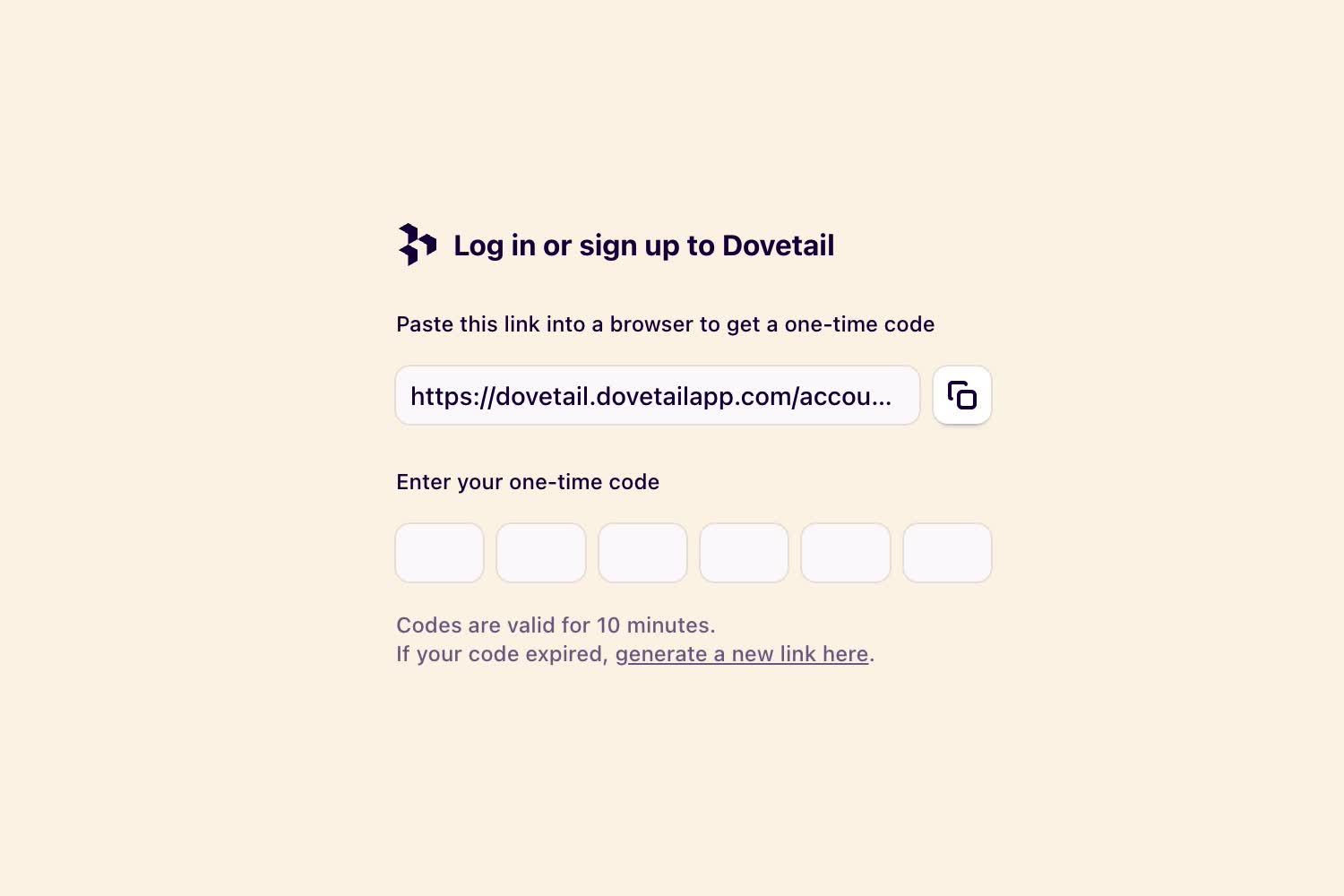
When you embed a link to a single video highlight or reel in Notion, the video will be available for your team to play right from Notion. If you are using the desktop or mobile app to play the highlight, you’ll need to authenticate first.- To do this, copy the link provided in the player and paste it into your browser to log in to OCSEE
- From there, copy the one-time password (OTP) and enter this into the box in Slack.
Disconnect Notion from OCSEE
You can disconnect your Notion account from OCSEE at any time.- To do this, open your Notion workspace, select ⚙️ Settings and members → My connections in the sidebar.
- From there, locate OCSEE in the integrations list, click
•••to and selectDisconnect.
Requested permissions
OCSEE’s Notion integration only requires thelink-preview scope. This allows the integration to generate and display previews of Notion links within your workspace. No additional Notion permissions or multi-scope access are requested.